Posts

Tip #28: Exploding MeSH - PubMed vs. Ovid MEDLINE

Image
 A few years ago I ran into a search quirk when translating a lengthy search from PubMed to Ovid MEDLINE. My Ovid results were significantly larger and it wasn't immediately obvious what was happening. After much testing and consulting with my colleagues (thanks, Mark MacEachern !), we finally pinned it down to a single MeSH term returning vastly different results between the two platforms .   Ovid - exp Food/ 1,428,580 results PubMed - "Food"[Mesh] 701,490 results We figured out what was causing the difference, but there was nothing in the help documentation that explained why it was happening. Even though the searches appeared to be the same, both MeSH terms were exploded, the platforms appeared to be handling them differently. I had to reach out to Ovid to get an answer for my remaining question. Over the course of a few weeks and many emails, they were finally able to provide a clear explanation: Ovid was including “Drug Terms” in the explode, where PubMed was not...

Tip #27: PubMed Subheadings Continued...

Image
ETA: Many thanks to Whitney Townsend for being a second set of eyes to check my testing strategies! Building on our earlier post, Tip #25: Using Subheadings in PubMed , here are some more fun things to know about PubMed's subheadings...  Did you know that PubMed's subheadings have their own hierarchy? You can see the full list of Subheadings categories in the MeSH database . And just like you find with other MeSH terms, PubMed also automatically explodes subheadings.  For example, when you search "Blood Glucose/analysis"[Mesh] , you are getting all of the relevant lower-level subheadings under "analysis" [Subheading].  This MeSH and subheading combo includes: "Blood Glucose/ analysis "[Mesh] "Blood Glucose/ blood "[Mesh] "Blood Glucose/ isolation and purification "[Mesh] "Blood  Glucose/ cerebrospinal fluid "[Mesh] In the screenshot below, you can see that ORing the other subheadings in doesn't increase or chang...

Tip #26: Display Settings in PubMed

Image
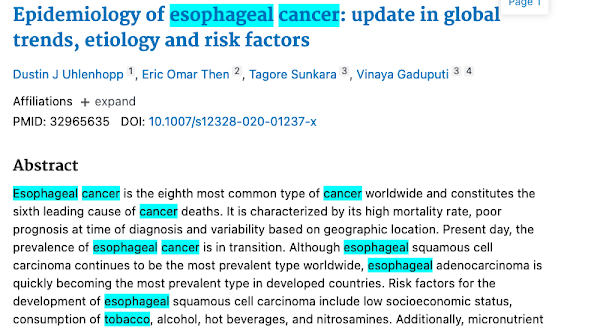
 This week's tip is a quick and easy one, but it can save you loads of time when skimming PubMed results for relevance. Did you know that you can adjust PubMed's display settings from your My NCBI account? Things like highlighting can help you efficiently skim through results to find your keywords of interest, and expanding the abstracts can help save you the time of clicking on every title to view the article details. " My NCBI " is a tool that allows users to set up a profile to manage preferences and services (collections, saved searches, My Bibliography, custom filters, etc.) for several NCBI databases, including PubMed. Step 1: Set up your My NCBI account Start here to create your My NCBI account. From the " My NCBI Help " documentation:  "There are multiple options to sign in to a My NCBI account: using a username and password associated with an eRA account or an NIH account, or using a username and password associated with a partner organization...

Tip #25: Using Subheadings in PubMed

Image
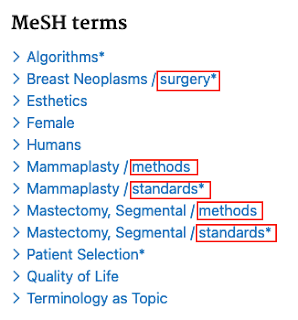
What is a Subheading? Subheadings allow searchers to improve the precision of a search that uses controlled vocabulary by further focusing on a narrower aspect of the topic. Here's an example of how subheadings (or qualifiers) are displayed for an indexed article in PubMed. Subheadings (highlighted in red) appear to the right of a slash following the Medical Subject Heading (MeSH). How to Use Subheadings in PubMed To build a PubMed search using subheadings, you have a few different options depending on the type of search you need. You can start from the MeSH database to build a search using Medical Subject Headings with subheadings applied. Find the MeSH term of interest, then from the record page you can select various subheadings that are relevant to that topic, and click "Add to search builder" to create the search. Click "Search PubMed" to run your search.     In the PubMed searches below, you'll see that the search with the " surgery " subhe...

(Re) Introducing the UX Caucus Issues Tracker!

Image
The UX Caucus, formally known as "Features & Flaws", launched a Google form Issues Tracker in early 2019 to help information professionals report and communicate usability problems with electronic resources. Our goals for the tracker included improving communication between information professionals and vendors; better-informed licensing decisions; and ultimately, better interfaces for all searchers. The initial version of this tracker also included an automatically generated analytics view that displayed aggregated form submission data.  In order to expand the tracker's audience, the MLA launched a pilot in early 2020 , where users were encouraged to not only submit UX issues, but also provide any feedback or suggestions to improve the tracking tool. After a period of about 6 months, we received nearly 40 issue submissions and some fantastic feedback to make the tool easier to use. Based on the pilot feedback, the UX Caucus team launched a revamped Issues Tracker ...

Tip #24: PubMed’s Phrase Index

Image
 Many thanks to Erica Lake (Outreach Coordinator, NNLM Region 6 ), and Amanda Sawyer and Jessica Chan from the NCBI PubMed team for this week's tip! Why is there a phrase index? The PubMed database contains more than 34 million citations and abstracts of biomedical literature and is growing by more than 1 million citations each year. PubMed uses a phrase index to provide efficient, cost-effective phrase searching while preserving system speed and performance for its 3.4+ million daily visitors. How does the phrase index work? Many phrases are automatically recognized by the subject translation table used in PubMed's Automatic Term Mapping (ATM ). For example, if you enter fever of unknown origin without enclosing it in double quotes, PubMed recognizes this phrase as a MeSH Term. You can bypass ATM and search for a specific phrase using the following formats: Enclose the phrase in double quotes: "kidney allograft" If you use quotes and the phrase is not found in the ph...

Tip #23: PubMed's [tiab] vs. [tw]

Image
Search field tags are a quick way to specify the exact fields you would like to search when using keywords. For example, I can tell PubMed to search for my term only in the title field or only in the MeSH Terms field. You can view a list of available search fields from the drop down menu in PubMed's Advanced Search Builder. Specifying field tags for keywords is also a good practice in PubMed because keywords searched without field tags will be translated through Automatic Term Mapping which may reduce the precision of your results. Here are a few sample searches in my search history, including #4 which wasn't limited to a field (notice how it was translated in the expanded search details): The fields that are included in the [title/abstract] fields are pretty self-explanatory (words and numbers included in a citation's title, collection title, abstract, other abstract and author keywords), but what is actually included in the [Text Word] (can also be searched as [tw]) fi...

Tip #22: Analyze search results in Ovid MEDLINE

Image
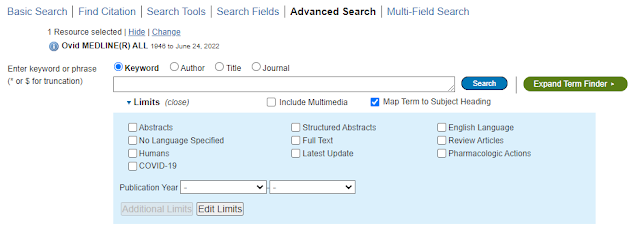
Ovid MEDLINE has a beta feature (reach out to your Ovid rep to place a request to enable it!) called Analyze which can be accessed to the upper right of search results: It is currently available for Advanced searches in Ovid MEDLINE only. Once it is enabled, perform an Advanced Search and you'll see the Analyze button above your search results. To disable it, you can treat it as you would any other INI setting or simply replace the word YES with the word NO. It will analyze up to the first 5,000 results of a search, providing MeSH and author keywords in order of frequency: I've started to use this in exploratory searching for 2 purposes. The first is to identify relevant MeSH and keywords I might not have thought of; the second is to provide my collaborators with a high-level sense of what the literature looks like. The latter can be useful when the initial research question is very broad or poorly defined, as is often the case with early-stage systematic or scoping reviews...

Tip #21: Term Finder in Ovid MEDLINE

Image
If you're like me and learned to use Ovid many years ago, you will sometimes miss new features on the platform. I learned about one of these features last week while participating in user testing for Ovid. The feature, Term Finder , is not new at all at this point - it was released in fall 2020!  Term Finder is an alternative way to look up MeSH in Ovid MEDLINE. It's located to the right of the search bar. It returns any mapped terms along with the various features -- the tree, entry terms, the scope note, available subheadings, etc. -- that we're used to navigating in the old step-by-step term mapping: I haven't had the opportunity to use the Term Finder for a search yet. As a single-line searcher who prefers to construct his searches in a text document rather than "on the fly" in the platform, however, it may end up making the process of gathering MeSH terms a bit more efficient. If you've used the Term Finder, let us know in the comments if you've f...

Tip #20: Stop Words within Phrases in Ovid

Image
 This week's tip is brought to us by Ursula Ellis from the University of British Columbia. She credits her colleague Mathew Vis-Dunbar for coming up with this solution! Thanks to you both! "If you search for an exact phrase which contains a stopword in Ovid, the stopword will be ignored and other words will be searched in the order entered, within 2 words of each other. For instance, line 1 of this search finds "treatment and prevention," "treatment or prevention," etc, but not "prevention and treatment" which is found by line 2: This is not ideal for many phrases in which the stopword is a critical piece of the search phrase. There are two options to solve this issue in Ovid. One is to get in touch with your rep and ask them to turn off "runtime stopword processing," as described here: https://wkhealth.force.com/ ovidsupport/s/article/ Stopwords-and-phrase- searching-in-Ovid-databases However, for large institutions, it i...